Installation
This guide walks you through setting up Blazor Data Orchestrator from a fresh clone to a running application. The entire process takes minutes — Aspire handles all infrastructure (SQL Server, Azure Storage emulator) automatically, and a guided Install Wizard walks you through first-time configuration.
Prerequisites: Make sure you have met all the Requirements before starting.
Deploying to Azure? See the Deployment guide to go from
git cloneto a fully deployed Azure Container Apps environment with a singleazd upcommand.
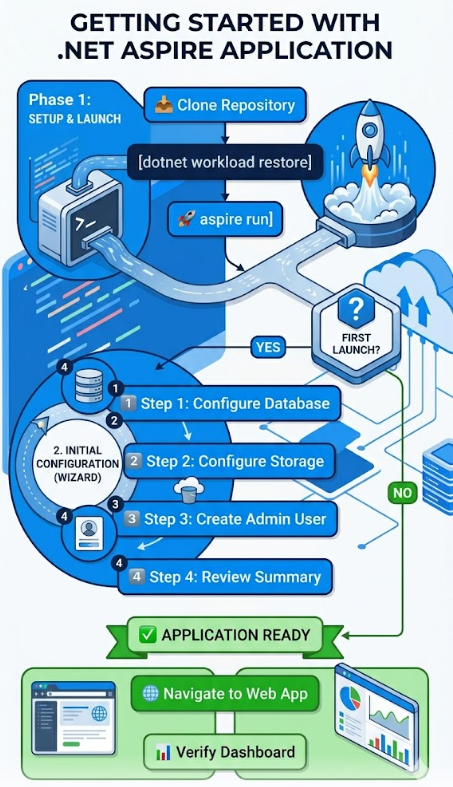
git clone https://github.com/Blazor-Data-Orchestrator/BlazorDataOrchestrator.git
cd BlazorDataOrchestratordotnet workload restore
dotnet restoreNote: Do not run
dotnet workload install aspire— the legacy Aspire workload is obsolete. Thedotnet workload restorecommand restores only the workloads declared by the solution.
aspire runThe Aspire AppHost orchestrates all services automatically:
| Resource | Type | Description |
|---|---|---|
sqlServer |
Container | SQL Server with persistent volume, port 1433 |
storage |
Container | Azurite emulator with Blob (10000), Queue (10001), and Table (10002) |
webapp |
Project | Blazor Server web application |
scheduler |
Project | Background scheduling service |
agent |
Project | Job execution worker |
All connection strings and service references are injected automatically by Aspire — no manual configuration is needed for local development.

Or open in Visual Studio or Visual Studio Code and Debug/Start Without Debugging.
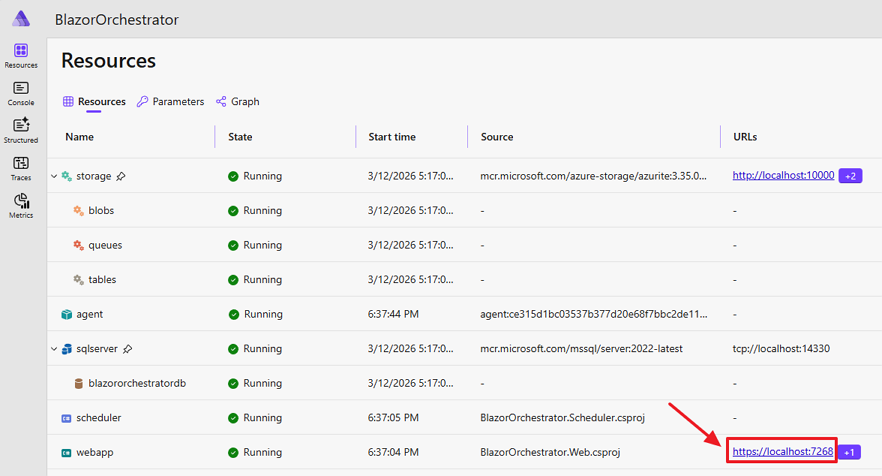
The Aspire Dashboard will open in your web browser. Locate the line that has the webapp and click the https hyperlink.

On first launch, the web application presents the Install Wizard.
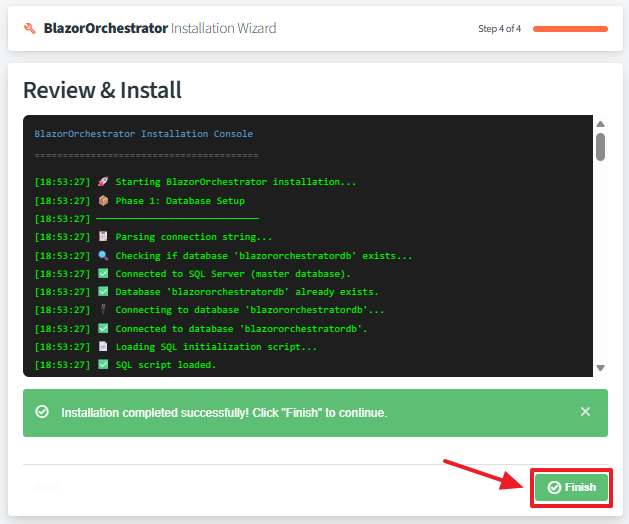
Complete the installation.

After the Install Wizard completes:
- Home page — You should see the job list (empty on first install).
- Aspire Dashboard — Open the Aspire dashboard URL (shown in the terminal output) to verify all services show a healthy status.
- Containers — Confirm that the SQL Server and Azurite containers are running in Docker Desktop.
Blazor Data Orchestrator uses standard .NET configuration files. In development, Aspire injects connection strings automatically, so you typically do not need to edit these files.
| File | Project | Purpose |
|---|---|---|
appsettings.json |
Web, Scheduler, Agent | Base configuration with connection strings |
appsettings.Development.json |
Web, Scheduler, Agent | Development-specific overrides |
appsettings.json |
AppHost | Aspire host configuration |
{
  "ConnectionStrings": {
    "blazororchestratordb": "Server=localhost,14330;Database=blazororchestratordb;...",
    "blobs": "UseDevelopmentStorage=true",
    "queues": "UseDevelopmentStorage=true",
    "tables": "UseDevelopmentStorage=true"
  }
}
Tip: When running via
aspire run, connection strings are injected by the AppHost and override values inappsettings.json. You only need to edit these files for standalone execution or production deployment.
| Problem | Solution |
|---|---|
aspire run fails to start |
Ensure Docker Desktop is running and the .NET 10 SDK is installed |
| SQL Server container won't start | Check that port 14330 is not in use by another process |
| Azurite ports conflict | Check that ports 10000, 10001, 10002 are free |
| Install Wizard doesn't appear | Clear the browser cache and navigate to the web app root URL |
| Database connection fails | Verify the SQL Server container is healthy in the Aspire dashboard |
Back to Home