Fork from LazyVim.
Refer to the documentation for more basic info.
- Key binding to turn off diagnostics
- diagnostics spams warning if you read random readme files online so just turn it off conveniently
- Neovim detects the terminal environment whether it is in Kitty or Wezterm.
- Snacks.image is disabled accordingly to avoid issues in other terminals like windows terminal.
- configuration setup for using snacks.image in Wezterm.
[!IMPORTANT] Don't use the main branch if possible. Use the dedicated WSL or Windows branch that has platoform specific settings. I use those branches everyday and is hence tested.
- Assuming a freshly installed Ubuntu(this means git and curl is available as default)
- copy and paste the following script to your WSL terminal.
- Give permission and provide passwords when prompted.
sudo apt update
sudo apt upgrade

sudo apt install build-essential gcc lua5.1 luarocks fzf ripgrep fd-find npm nodejs

/bin/bash -c "$(curl -fsSL https://raw.githubusercontent.com/Homebrew/install/HEAD/install.sh)"
USERNAME=$(whoami)
echo >> /home/$USERNAME/.bashrc
echo 'eval "$(/home/linuxbrew/.linuxbrew/bin/brew shellenv)"' >> /home/$USERNAME/.bashrc
eval "$(/home/linuxbrew/.linuxbrew/bin/brew shellenv)"

brew install neovim
brew install jesseduffield/lazygit/lazygit

mkdir -p ~/.config/
cd ~/.config
git clone https://github.com/B1LLP4RK/lazyvim-config.git
mv lazyvim-config nvim
curl -o- https://raw.githubusercontent.com/nvm-sh/nvm/v0.40.3/install.sh | bash
export NVM_DIR="$HOME/.nvm"
[ -s "$NVM_DIR/nvm.sh" ] && \. "$NVM_DIR/nvm.sh"  # This loads nvm
[ -s "$NVM_DIR/bash_completion" ] && \. "$NVM_DIR/bash_completion"  # This loads nvm bash_completion
nvm install node
Above script is just a short version of the one below
# updating and upgrading packages
sudo apt update
sudo apt upgrade

# install homebrew
/bin/bash -c "$(curl -fsSL https://raw.githubusercontent.com/Homebrew/install/HEAD/install.sh)"
# Run these commands in your terminal to add Homebrew to your PATH:
USERNAME=$(whoami)
echo >> /home/$USERNAME/.bashrc
echo 'eval "$(/home/linuxbrew/.linuxbrew/bin/brew shellenv)"' >> /home/$USERNAME/.bashrc
eval "$(/home/linuxbrew/.linuxbrew/bin/brew shellenv)"
# Install Homebrew's dependencies if you have sudo access:
sudo apt install build-essential
# For more information, see:
# https://docs.brew.sh/Homebrew-on-Linux

# We recommend that you install GCC:
# brew install gcc
apt install gcc


# install neovim
brew install neovim

# install lazy nvim requirements
sudo apt install lua5.1 luarocks

# install lazyvim reqruiements
brew install jesseduffield/lazygit/lazygit
# apt install gcc
sudo apt install fzf ripgrep fd-find

mkdir -p ~/.config/
cd ~/.config
git clone https://github.com/B1LLP4RK/lazyvim-config.git
mv lazyvim-config nvim

# install nvm node and npm for mason.nvim
curl -o- https://raw.githubusercontent.com/nvm-sh/nvm/v0.40.3/install.sh | bash
export NVM_DIR="$HOME/.nvm"
[ -s "$NVM_DIR/nvm.sh" ] && \. "$NVM_DIR/nvm.sh"  # This loads nvm
[ -s "$NVM_DIR/bash_completion" ] && \. "$NVM_DIR/bash_completion"  # This loads nvm bash_completion
nvm install node

# for mason.nvim
sudo apt install nodejs npm- Now run the command
nvim. Some errors will show up as neovim boots, but ignore them with a few presses of space or enter key. - Exit via the command
:q - Rerun
nvim
Watch the video below
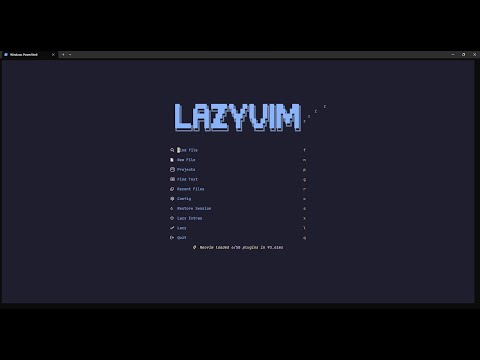
- Wezterm for windows can be used if you need snacks.image.
- follow the steps given in this discussion
Windows 11 wezterm-nightly-setup.exe nvim-win64.exe winget install --id Git.Git -e --source winget winget install --id=sharkdp.fd -e winget install -e --id ImageMagick.ImageMagick :lua Snacks.image.hover()
- follow the steps given in this discussion
- Use the termux branch of this repo and not the main.
- tips: lua and luarocks is available in termux pkg by
pkg install lua51 luarocks