I. Create virtual machines using Hyper-V
A1. Create Virtual Machine with Hyper-V on Windows 10
A2. Use my provided PowerShell Script to create Virtual Machines. File name "hyperv-createvm.ps1"
I'm going to use the PowerShell I've created to create the following virtual machines:
a. hjc-adprod -- The Domain controller server.
b. hjc-sqlprod -- The Primary SQL Server Instance.
c. hjc-sqldr01 -- The Seconday SQL Server Instance.
Time for some action.
B1. Open PowerShell ISE (run as administrator). Set the execution policy to "Unrestricted" to CurrentUser scope.
Set-ExecutionPolicy Unrestricted -Scope CurrentUser -Force
Get-ExecutionPolicy -List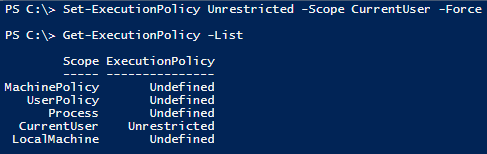
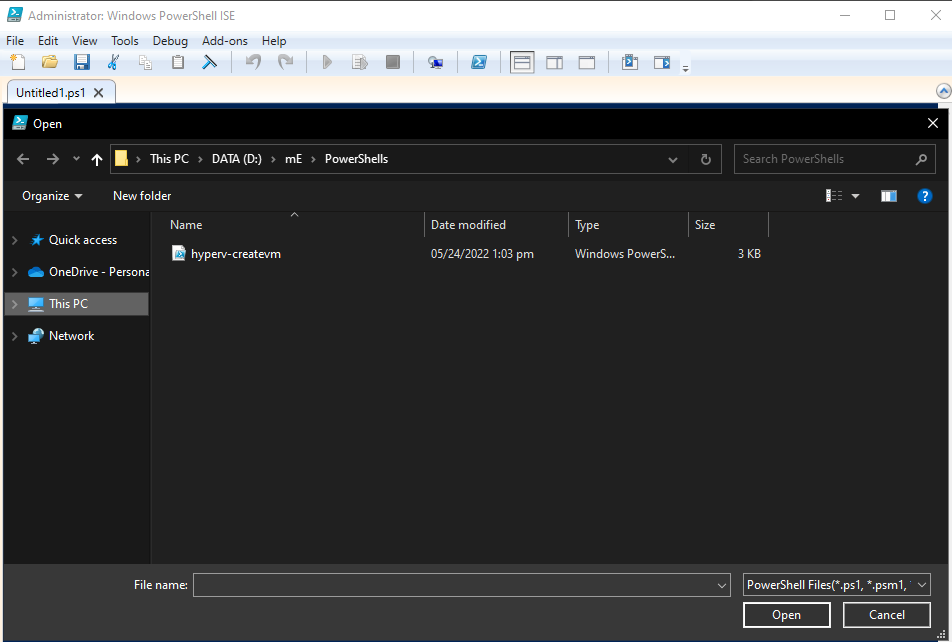
B2. At the PowerShell ISE, navigate to File, click Open then select the provided PowerShell script (hyperv-createvm.ps1).
B3. Click the Run Script button or Press F5.
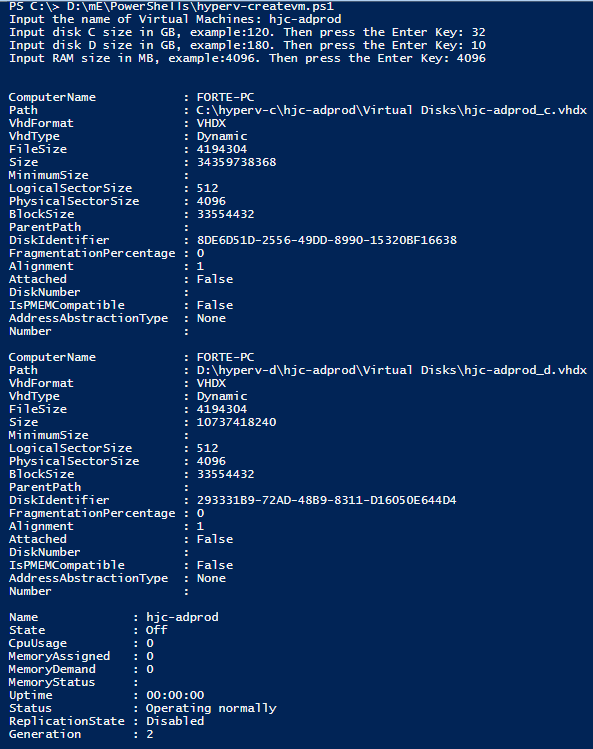
B4. Type in the name of the virtual machine, size of Disk C & D, and the Memory of the Virtual Machines. I've created first the "hjc-adprod" virtual machines, set the size of Disk C & D to 32 GB & 10GB, and Memory to 4096 MB or 4GB, respectively. Press enter and wait till the process complete.

Process complete!
B5. To verify, type the following in the PowerShell ISE.
Get-VMHere's the result:

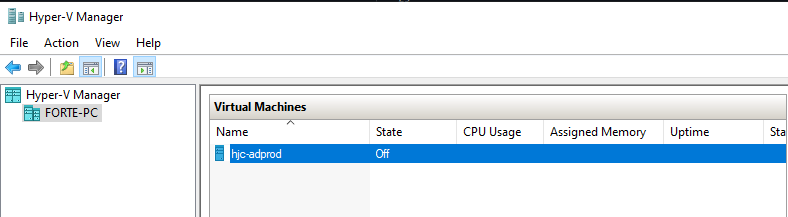
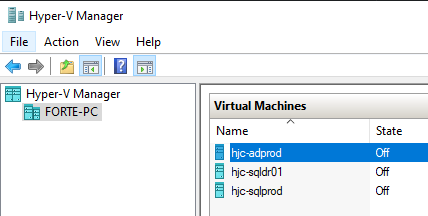
Or open the Hyper-V Manager to see the newly created Virtual Machines.
B6. Now create the 2 remaining virtual machines. To create a new PowerShell ISE Session/TAB, press CTRL+T. Run the PowerShell Script again.
B7. All virtual machines created successfully!

II. Install OS and OS features such as Active Directory Domain Services, and so on