This is an API service for structured data management and maintenance. Written in PHP as a package for Laravel framework.
This document provides the installation process information and the API usage.
- Installation procedure
- Basic usage example
- API endpoints specification
- Contributors
First you need an instance of Laravel project in order to use this package. It can be downloaded from the Github repository located in https://github.com/laravel/laravel. You can also use Composer to create it via command:
composer create-project laravel/laravel .Next, run composer to require our extension under your Laravel directory:
composer require ximdex/structured-dataThis command installs the package in vendor folder.
Before continuing, you have to configure the database properly in your Laravel project in your .evn file in the root directory. For example:

The next step is the database generation. You need to run the migration process using the command for this purpose:
php artisan migrateAfter this operation we have created the database tables in our project with the strdata prefix to avoid the previous table names collision.
At this time we are able to consume the API operations to manage the schemas and items data.
We assume in this manual that the host for our Laravel instance is under a host named localhost and it's being served. Otherwise we would need to add the rest of the folder hierarchy. For example, for a Laravel project in a folder called structured-data:
Assuming the former, then we call the endpoint with this example usage:
This request will retrieve a JSON code with all the schemas that are actually created in our storage. Since it's a brand new installation there wouldn't be any schema. This will be covered later.
Operations over schemas and items data give you a complete control to create or update schemas, generate items of a type of this schemas and associate information to its properties.
To import a schema definitions URL provided by schema.org you can run this console command under the Laravel directory:
php artisan schemas:import https://schema.org/version/latest/schemaorg-current-http.jsonldThis command only supports schemas.org definitions in JSON+LD format.
Currently, Schema.org just serves the lastest version, but for legacy purposes you can specify the version as another argument:
php artisan schemas:import https://schema.org/version/latest/schemaorg-current-http.jsonld 29.2If no argument is provided, the version will be internally labeled as 'Latest'.
If there is any schema definition created by a previous importation or by any user, this information will be updated to the new version and only the absent definitions will be marked as obsolete. However we can still use this deprecated information later.
Also it's possible to perform this import using the following endpoint:
Visit http://schema.org for more details.
Each schema is a type of item that contains a variable number of properties and can inherit additional properties from a parent schema.
You can use the schema unique id to load the schema attributes, its properties and the other schemas that are inherited. Usage:
The result of this request will be a JSON object containing the definition of a schema identified by the number 132, in this example the Person schema:
{
    "id": 132,
    "label": "Person",
    "comment": "A person (alive, dead, undead, or fictional).",
    "version_id": 1,
    "properties": [
        {
            "id": 7,
            "min_cardinality": 0,
            "max_cardinality": null,
            "order": 1,
            "default_value": null,
            "version_id": 1,
            "label": "jobTitle",
            "comment": "The job title of the person (for example, Financial Manager).",
            "schema_label": "Person",
            "version_tag": "Latest",
            "types": [
                {
                    "id": 7,
                    "schema_id": null,
                    "type": "Text",
                    "version_id": 1,
                    "schema_label": null,
                    "version_tag": "Latest"
                },
                {
                    "id": 8,
                    "schema_id": 286,
                    "type": "Thing",
                    "version_id": 1,
                    "schema_label": "DefinedTerm",
                    "version_tag": "Latest"
                }
            ]
        }
    ],
    "version_tag": "Latest",
    "schemas": [
        {
            "id": 140,
            "label": "Thing",
            "comment": "The most generic type of item.",
            "version_id": 1,
            "version_tag": "Latest",
            "schemas": []
        }
    ]
}
Note: the properties are simplified to just 1 to serve as example due to the bigger amount of them available.
We can see all the properties and their available types for the Person type and their inherited schemas listed in the "schemas" node. In this example, some of the properties come from the Thing schema.
New schemas can be created with a given label name and an optional comment. If this name is already in use, the operation will be canceled.
If the schema extends the attributes of other schemas, you can use the optional parameter schemas to send a list of unique id schemas and their priority. This last argument is optional.
Example usage:
{
    "label": "ClubMember",
    "comment": "A member of a club",
    "schemas": [
        {
            "id": 132,
            "priority": 1
        }
    ]
}
The result of this operation will be the created schema containing the new unique id assigned:
{
    "label": "ClubMember",
    "comment": "A member of a club",
    "id": 920,
    "version_tag": null
}
User schemas don't have a version (null value instead), so they are always ready to be used in future imported versions.
This is an example of a response error that happens when you try to create a schema with a name already in use:
{
    "message": "The given data was invalid.",
    "errors": {
        "label": [
            "The label has already been taken."
        ]
    }
}
Another common error happens when the label contains anything else but letters. The label can't contain spaces either, like for example "Club Member". The returned error looks like this:
{
    "message": "The label field must only contain letters.",
    "errors": {
        "label": [
            "The label field must only contain letters."
        ]
    }
}
This is the common format for any error in a management operation. Note that you can have multiple errors with different POST fields.
Similar to the creation of a new schema, the only difference is the inclusion of the unique id of the schema to edit in the request operation, and the usage of either the PUT or PATCH method instead of POST.
{
    "comment": "A member of a club updated"
}
The label parameter (or each one you use with a minimum cardinality equal or greater to one) is required if you use the PUT method. In the example above, using PUT instead of PATCH, the response will be:
{
    "message": "The given data was invalid.",
    "errors": {
        "label": [
            "The label field is required."
        ]
    }
}
Like in the creation operation, it's possible to send a list of schemas to change the properties schema inheritance. This argument is optional, but if it's used, the relationship with any schemas previously associated will be removed and replaced with the given ones. For example:
{
    "schemas": [
        {
            "id": 133,
            "priority": 1
        }
    ]
}
Now our schema with unique id 920 will extend the State schema with priority 1.
A schema can be deleted using the DELETE method and the unique id of the schema to delete. This operation can't be undone.
[DELETE] http://localhost/api/v1/schema/920
If the schema is already in use by any item, the operation will be denied.
We support some operations to manage the properties in use for the schemas.
All the details from a property in a schema can be modified.
You can associate a property to a schema using this function. To do this it's necessary to provide the schema unique id and the property unique id in order to create the relationship. Also the type or list of types available must be present in this request to define what kind of type will support this property in this schema.
Here is an example of usage:
{
    "schema_id": 53,
    "property_id": 576,
    "types": [
        {"type": "Text"},
        {"type": "Thing", "schema_id": 45}
    ]
}
The available types can be a simple type from the following list:
- Boolean
- Date
- DateTime
- Time
- Number
- Text
Or a type Thing including a schema id to support an item as value for this type. The example above shows that the Organization schema will support items of type Person for the property employee.
Now we have created a type text and Person for this relationship:
{
    "id": 1746,
    "label": "employee",
    "comment": "Someone working for this organization.",
    "schema_label": "Organization",
    "version_tag": null,
    "types": [
        {
            "type": "Text",
            "id": 2403,
            "schema_label": null,
            "version_tag": null
        },
        {
            "type": "Thing",
            "schema_id": 132,
            "id": 2404,
            "schema_label": "Person",
            "version_tag": null
        }
    ]
}
Sometimes we want to create a new property instead of using an existing one. It is possible to send a property name and an optional comment to create both the property and the relationship to the specified schema.
For example:
{
    "schema_id": 53,
    "property_id": 576,
    "types": [
        {"type": "Text"}
    ]
}
So a new property employee has been created and assigned to the Organization schema supporting values of Person type items.
A property in a schema can support some kind of restrictions and other features.
These are optional parameters in the request as listed:
-
min_cardinality: Specifies that there must be a number of values in this property equal to or greater than the specified number for the associated schema. By default there is not a minimum quantity.
-
max_cardinality: The property in this schema does not support a number of values greater than the given one. By default there is not limit.
-
default_value: If a value is created with empty content in this property, this default value will be use. By default values cannot be empty.
-
order: The order of the property in this schema. For presentation purposes.
Here is an example of these attributes:
{
    "schema_id": 53,
    "property_id": 576,
    "types": [
        {"type": "Text"}
    ],
    "min_cardinality": 1,
    "max_cardinality": 20,
    "default_value": "Default employee name",
    "order": 2
}
Now, this property will support only values in text mode, at least one value and a maximum of twenty values defined for an item. So the employee will have a number greater than one and no more than twenty employees.
Any employee with no name will be created with "Default employee name".
To update the property attributes already defined in a schema, you must include the unique id of the schema-property relationship in the request.
Use the endpoint with the PUT or PATCH method like this example:
{
    "comment": "Default employe name updated",
    "min_cardinality": 0,
    "max_cardinality": 0,
    "default_value": null,
    "order": 5
}
Every attribute is optional. Use zero value to reset the cardinality restrictions to their default values.
Also you can provide a list of available types to change the supported values in this property. For example:
{
    "types": [
        {"type": "Text"},
        {"type": "Thing", "schema_id": 132}
    ]
}
Remember that the old types will be deleted.
Often, we need to change a type or add a new one to a property in a schema. If you don't want to specify all the types in the property update operation, to change the desired ones, it's possible to add or update separately.
You need to provide the unique id for the relationship between the schema and the property (property_schema_id), and the type to create:
{
    "property_schema_id": 1747,
    "type": "Date"
}
At this time we have a new type supporting values of Date type.
This operation will return a JSON object with the property containing the new type:
{
    "id": 1747,
    "min_cardinality": 1,
    "max_cardinality": 20,
    "order": 2,
    "default_value": "Default employee name",
    "version_id": null,
    "label": "employee",
    "comment": "Someone working for this organization.",
    "schema_label": "Organization",
    "version_tag": null,
    "types": [
        {
            "id": 2407,
            "schema_id": null,
            "type": "Date",
            "version_id": null,
            "schema_label": null,
            "version_tag": null
        },
        {
            "id": 2405,
            "schema_id": null,
            "type": "Text",
            "version_id": null,
            "schema_label": null,
            "version_tag": null
        }
    ]
}To update the type attributes is necessary to include the unique type id.
For example, we want to change the previous created type from Date to Person schema, in order to allow items of this type as this employee property.
To do this it is necessary to provide the unique id for the Person schema (132) and specify the Thing for the type field:
{
    "type": "Thing",
    "schema_id": 132
}
Now the updated type support items of type Person schema looks like this:
{
    "id": 1747,
    "min_cardinality": 1,
    "max_cardinality": 20,
    "order": 2,
    "default_value": "Default employee name",
    "label": "employee",
    "schema_label": "Organization",
    "types": [
        {
            "id": 2407,
            "schema_id": 132,
            "type": "Thing",
            "schema_label": "Person"
        },
        {
            "id": 2405,
            "schema_id": null,
            "type": "Text",
            "schema_label": null
        }
    ]
}An item is a group of values for an schema type. These values will be grouped in the schema properties according to the schema specifications, like maximum and minimum number of values (cardinality) and supporting types in the properties available types.
You can retrieve the values of an item for its unique item id, for example:
The response will be a JSON+LD object for the item with unique id 1, a type Person:
{
    "@context": "http://schema.org",
    "@type": "Person",
    "@id": "http://localhost/api/v1/item/1",
    "name": "Antonio Jesús",
    "email": "antoniojesus@ximdex.net",
    "knowsLanguage": [
        "es",
        "en"
    ]
}This argument can be used to show extra information about the specified item. It can contain a list of values separated by commas.
Usage:
This is the list of values:
-
uid: show the unique id values for each element in the item.
-
deprecated: It's possible to retrieve the deprecated definitions like old version properties or types for this schema, using the deprecated value.
-
version: show the version unique id.
For example:
[GET] http://localhost/api/v1/item/1?show=deprecated,uid,version
This request retrieves the same information about the item values, adding the unique id for each value as @uid property, the item unique id as @item, and the version of the schema import as @version.
{
    "@context": "http://schema.org",
    "@type": "Person",
    "@id": "http://localhost/api/v1/item/1",
    "@item": 1,
    "@version": 5,
    "@uid": 132,
    "knowsLanguage": [
        {
            "@uid": 204,
            "@version": 5,
            "@value": "es"
        },
        {
            "@uid": 205,
            "@version": 5,
            "@value": "en"
        }
    ],
    "name": {
        "@uid": 202,
        "@version": 5,
        "@value": "Antonio Jesús"
    },
    "email": {
        "@uid": 203,
        "@version": 5,
        "@value": "antoniojesus@ximdex.net"
    }
}
Note that any property value for a simple type is specified in the @value attribute.
It's possible to express the item data in other language expressions with the format argument.
Show the item values in RDF/XML syntax.
For example, the item defined as type Person will be exported as this syntax:
The result of this request operation will be:
<?xml version="1.0" encoding="utf-8" ?>
<rdf:RDF xmlns:rdf="http://www.w3.org/1999/02/22-rdf-syntax-ns#" xmlns:schema="http://schema.org/">
    <schema:Person rdf:about="http://localhost/api/v1/item/1">
        <schema:email rdf:datatype="http://www.w3.org/2001/XMLSchema#string">antoniojesus@ximdex.net</schema:email>
        <schema:knowsLanguage rdf:datatype="http://www.w3.org/2001/XMLSchema#string">es</schema:knowsLanguage>
        <schema:knowsLanguage rdf:datatype="http://www.w3.org/2001/XMLSchema#string">en</schema:knowsLanguage>
        <schema:name rdf:datatype="http://www.w3.org/2001/XMLSchema#string">Antonio Jesús</schema:name>
    </schema:Person>
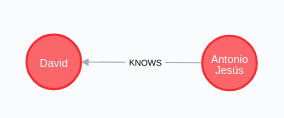
</rdf:RDF>If you want to import an item and its relationships into a neo4j graph, this option will be helpfully to do this. This format generates a list of commands in cypher language that can be imported in a neo4j project.
The result of this request operation will be:
MERGE (person1:Person {id:1})
SET person1.knowsLanguage = ['es', 'en']
SET person1.name = ['Antonio Jesús']
SET person1.email = ['antoniojesus@ximdex.net']
MERGE (person4:Person {id:4})
SET person4.name = ['David']
SET person4.email = ['david@ximdex.net']
MERGE (person1)-[:KNOWS]->(person4)
RETURN person1
This result in a creation of two nodes Person with the given attributes and the relationship KNOWS between them:
The values of an item can be created or updated through the item management endpoint.
Basically the request will include the unique item id in the update operation, or the unique schema id in creation process.
The rest of the required data is the values for the properties to create the content of the item.
If you want to create a new item based on the Person schema with a minimal amount of data (name and email), the request will be the following:
[POST] http://localhost/api/v1/item
{
    "schema_id": "132",
    "properties": {
        "name": {
            "type": 1415,
            "values": [
                "Open Ximdex"
            ]
        },
        "email": {
            "type": 369,
            "values": [
                "contact@ximdex.net"
            ]
        }
    }
}
Note that with each property we will provide the available type id for the one supported by such property in the Person schema, and the values for this type are always returned as an array, even if the element can only contain a simple value.
Remember that you can obtain information about these types retrieving the entire schema properties specification. For example, in this case:
If successful, the result of this operation will return the new item created:
{
    "schema_id": "132",
    "id": 9,
    "schema_url": "http://localhost/api/v1/item/9",
    "schema_label": "Corporation",
    "values": [
        {
            "available_type_id": 1415,
            "value": "Open Ximdex",
            "ref_item_id": null,
            "position": 1,
            "id": 211
        },
        {
            "available_type_id": 369,
            "value": "info@ximdex.com",
            "ref_item_id": null,
            "position": 1,
            "id": 212
        }
    ]
}Now, we have an item named 'Open Ximdex' of type Corporation. We need to update the contact email and add some extra information, like two employees and the country address.
The example above shows how this can be done:
[PATCH] http://localhost/api/v1/item/9
{
    "properties": {
        "email": {"type": 369, "values": [{"id": 212, "value": "new-contact-email@ximdex.net"}]},
        "employee": {"type": 2407, "values": [2, 4]}
    }
}
Remember that if you don't specify the previous value id, a new email will be added to the email property.
Use the show argument to know the unique id corresponding to the values of the item to update or delete:
So now we have a Corporation item with a relationship with many Person items through the employee property:
{
    "@context": "http://schema.org",
    "@type": "Corporation",
    "@id": "http://localhost/api/v1/item/9",
    "name": "Open Ximdex",
    "email": "new-contact-email@ximdex.net",
    "employee": [
        {
            "@type": "Person",
            "@id": "http://localhost/api/v1/item/2",
            "name": "Antonio Jesús",
            "email": "antoniojesus@ximdex.net"
        },
        {
            "@type": "Person",
            "@id": "http://localhost/api/v1/item/4",
            "name": "David",
            "email": "david@ximdex.net"
        }
    ]
}
If you want to delete a value from this item, for example, the employee called David, we can use the delete argument to remove only this value:
[PATCH] http://localhost/api/v1/item/9
{
    "delete": [214]
}
Many property values can be removed specifying a list of unique values id in this attribute, and they can be sent with other properties.
An entire set of property values can be removed specifying the delete attribute instead of the unique id list.
For example, if we want to remove all of the employees for our item previously created, we will use the argument delete in the corresponding item property:
[PATCH] http://localhost/api/v1/item/9
{
    "properties": {
        "employee": {"type": 2407, "values": [], "delete": true}
    }
}
Only the values type Person (2407) will be removed in the employee property.
If you send any value in the values attribute, then these values will replace the previous ones.
All data for an item can be removed using its unique id. The possible related items will not be deleted, but the relationships with other items will disappear.
Usage:
[DELETE] http://localhost/api/v1/item/9
Do this carefully, this operation cannot be undone.
- Antonio Jesús Lucena @ajlucena78.
- David Arroyo @davarresc.
- Daniel Domínguez @daniel423615.